Obtaining subscription details is the first step, but accessing channels begins after setting up your IPTV playlist correctly. Although setup steps may vary from device to device, they ultimately rely on entering playback credentials into the app so it can load and organize the channels.
With the widespread availability of IPTV apps on smart TVs, smartphones, and computers, adding playlists has become much easier than before, requiring no technical expertise or complex settings.
In this guide from Smarters IPTV Store, you will learn about the data you need before getting started, how to add a playlist on popular devices, along with helpful tips to manage your channels easily after setup.
Before Adding an IPTV Playlist… What Data Is Required?
The required data depends on the method supported by the media player app and typically includes:
- Playlist URL (M3U URL): The most common option for streaming channels directly.
- Playlist File (M3U File): Can be uploaded to the app if your service provider offers it in this format.
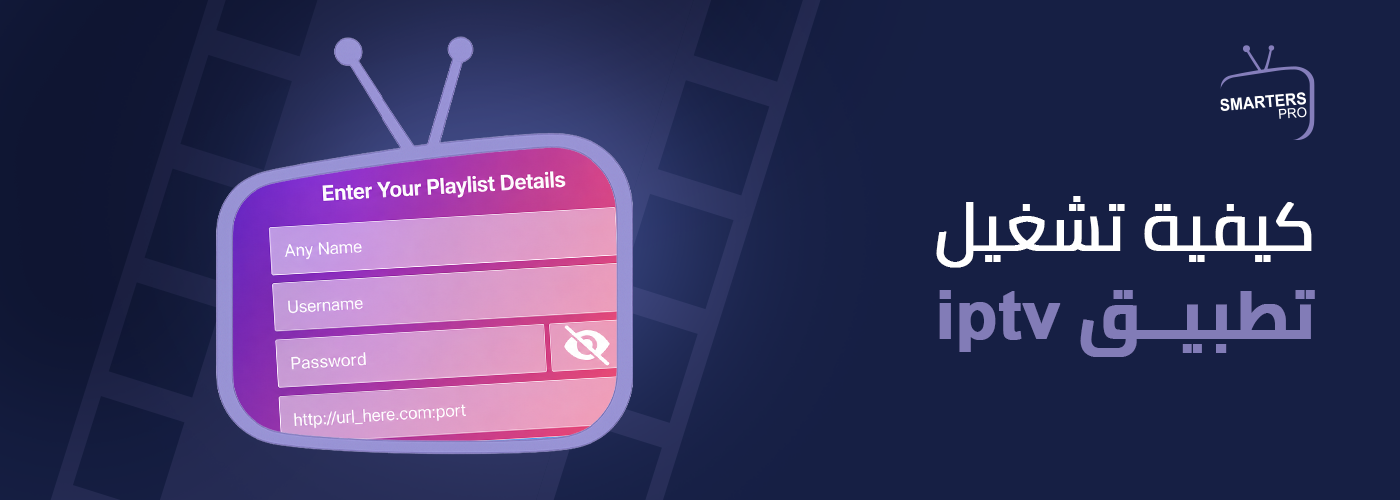
- Xtream Codes Credentials: Includes server URL, username, and password for apps supporting this activation method.
- Activation Code: Provided by some apps instead of entering data manually.
- Stable Internet Connection: To ensure fast playlist loading and proper channel data synchronization.
How to Add an IPTV Playlist on Smart TVs
Many Smart TV apps rely on a web page to manage activation details, making playlist entry quick without requiring extensive use of the TV’s on-screen keyboard.
You can complete the process through the following steps:
- Install the IPTV app you want to use on your Smart TV.
- Open the app to retrieve activation details if required.
- Access the app’s dedicated management page from your phone or computer.
- Enter your subscription details or playlist URL in the designated fields.
- Save changes and reopen the app to load the channels.
Apps like IBO Player and SmartOne IPTV use a similar process, with minor differences in user interface and data input methods.
Running IPTV Playlists on Android and Android TV Devices
Android devices offer great flexibility for running IPTV services, as most apps support multiple methods for adding subscription details. To start playback, follow these steps:
- Install an IPTV-compatible app.
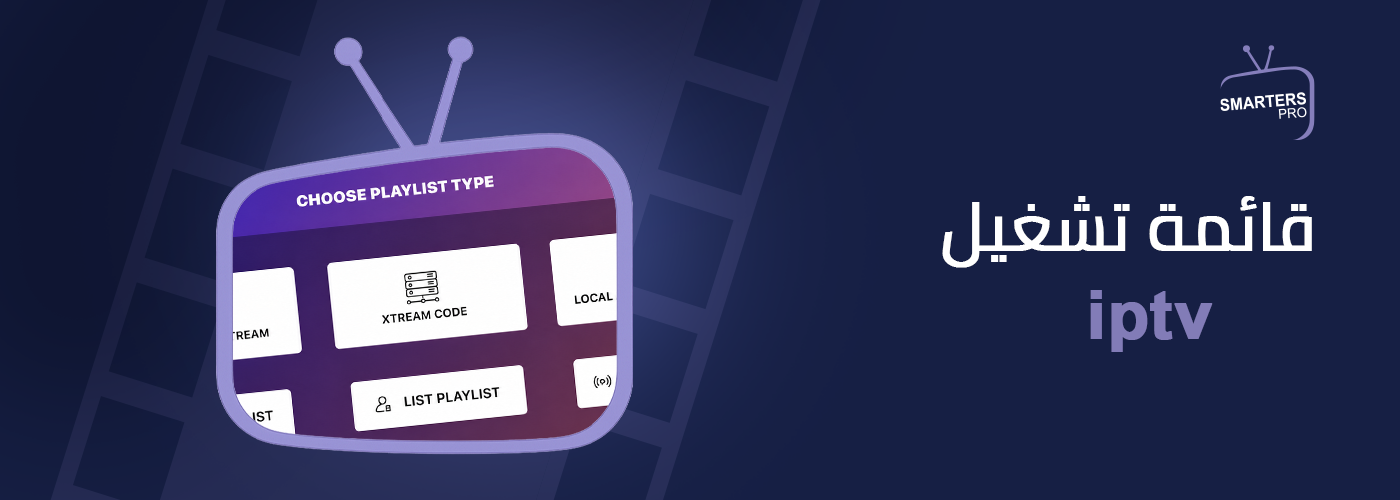
- Choose the login method provided by your service provider.
- Enter the activation details or paste the playlist link.
- Wait for the app to finish loading the channels.
- Verify that categories and channels appear correctly before you start watching.
Popular apps on these devices include IPTV Smarters and TiviMate, both supporting playlist additions in different ways based on your subscription data.
What to Do After Loading Your Playlist?
Once your playlist loads successfully, you can take advantage of several features to make your viewing experience more organized, such as:
Create a Favorites List
If you watch a specific set of channels regularly, add them to your favorites list for quick access without scrolling through every category.
Hide Unwanted Categories
Some apps allow you to hide unused categories, helping reduce clutter and keeping the app interface clean and organized.
Update the Playlist When Needed
Service providers may add new channels or update playlist data, so refreshing or updating your playlist periodically ensures you get the latest content.
Check Your Subscription Details
If you notice channels stopping or the playlist failing to load completely, check your subscription details to ensure they remain active and unchanged.
Common Issues When Adding an IPTV Playlist
You might encounter some issues while adding an IPTV playlist, usually related to credentials or app settings. Common problems include:
- Playlist not showing in the app: This usually happens due to a typo in the credentials or an invalid URL. Double-check the details and try again.
- Channels not loading completely: The app may need a few minutes to complete downloading data, especially if the playlist contains a large number of channels.
- Error message while adding the playlist: This issue could be linked to an expired subscription or a broken link. Verify your details before trying again.
- New updates not appearing: If your service provider added new content that does not show up, manually updating the playlist from the app settings should resolve it.
How to Make Using IPTV Playlists Easier?
Organizing IPTV playlists depends on the app used and how it is set up, but following a few best practices will help you get the best experience.
- Use an app that supports easy playlist updating.
- Store your activation details in a safe place for future reference.
- Update the app regularly to benefit from new improvements and features.
- Avoid adding multiple unused playlists to keep the interface neat.
- Check app settings if you notice any changes in how channels are displayed.
If you want to learn more about playlists, you can check out the guide on IPTV M3U and how to use it to stream channels on compatible devices and apps.
Frequently Asked Questions
Can I add more than one IPTV playlist to the same app?
Yes, many IPTV apps support adding multiple playlists, allowing you to switch between them within the app based on supported features.
Do I need to re-add the playlist after renewing my subscription?
It depends on the activation method. In some cases, the playlist continues working automatically after renewal, while in others, you may need updated login details from your provider.
What is the difference between an IPTV playlist and an M3U link?
An M3U link is a specific format for IPTV playlist data, while a playlist refers to the overall content data used by the app to display channels, whether as a link or a file.
Can channel order be customized inside the app?
Some IPTV apps allow reordering channels or creating favorite lists, while in other apps, channel order depends entirely on how the playlist itself is organized.
Set Up Your Subscription Right… and Enjoy Organized Streaming
Ultimately, managing your content becomes much easier when the playlist is added correctly using the right app and up-to-date credentials. The clearer your setup from the start, the smoother and more organized your viewing experience will be, offering faster access to the content you love.
If you are looking for IPTV solutions that combine simple setup with diverse options, Smarters IPTV Store offers subscriptions and setup details that help you enjoy a more stable and effortless viewing experience.
Before setting up your Smarters subscription, check your device compatibility. Learn more about supported devices and how to activate your subscription across various platforms—including iPhone, iPad, Android devices, Smart TVs, and Fire Stick—so you can find the right guide for your setup and start watching effortlessly.