Online streaming services offer a more flexible way to access channels and content across multiple devices. However, getting the most out of your subscription starts with setting up the app correctly. That is why many users search for how to run an IPTV app and add subscription details so that channels appear within the media interface.
In this guide, we explain how to set it up on smart TVs, smartphones, and computers, along with top solutions for issues that might arise during setup.
What Do You Need Before Setting Up an IPTV Subscription?
Before installing the app and starting the setup, make sure you have the essential elements required for operation. Having them ready beforehand makes the activation steps faster and clearer:
- A reliable internet connection: Online streaming requires a stable connection that enables continuous content buffering.
- A compatible device: You can use a Smart TV, smartphone, Android TV, or computer, depending on the apps available for each system.
- Subscription details: You may receive an M3U link or Xtream Codes login credentials, depending on the method supported by your service provider.
- An IPTV app: Choose a player that supports your device’s operating system and your available login method.
It is helpful to review your subscription details before starting IPTV activation. Having an incorrect link or incomplete credentials can prevent the app from loading channels even if it is properly installed.
How to Set Up an IPTV App on Smart TVs
You don’t need complex settings to run IPTV on your smart TV. Once the app and correct subscription details are ready, you can complete the setup and access channels in a few straightforward steps:
- Install the IPTV app: Download the app compatible with your TV’s operating system from the app store.
- Open the app: Launch the app and go to the option for adding a playlist or subscription details.
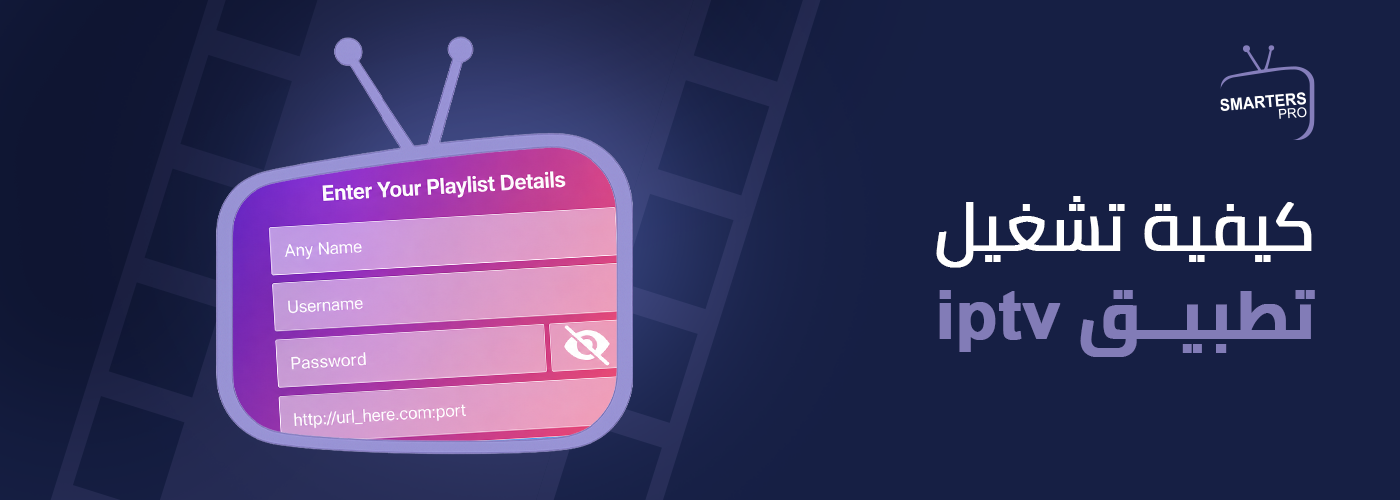
- Enter subscription details: Add the M3U link or Xtream Codes details according to the method supported by the app.
- Load channels: Wait for the app to read the data and load the list of channels and content.
- Organize channels: Use categories and favorites to quickly access the channels you watch frequently.
- Start watching: Select the desired channel from the playlist and start streaming.
Which App Fits Your Smart TV?
Numerous apps are available to run IPTV services on smart TVs, with common examples including Smart IPTV, Set IPTV, IBO Player, and SmartOne IPTV. Choosing the best IPTV player app depends on your TV’s operating system, your subscription method, and the features you need.
Steps to Add Your Subscription to the App
After installing the IPTV app and preparing your subscription details, you can complete the setup using the following steps:
- Open the app on your TV and register the device details if prompted.
- Select the method for adding the subscription, whether via an M3U link or Xtream Codes.
- Enter the required information in the designated fields.
- Save the playlist or account and wait for the app to finish loading the data.
- Relaunch the app if needed if channels do not appear immediately.
- Open the Live TV section to confirm that the setup process is complete.
Some apps rely on a web page to upload details and may require a MAC Address or Device ID to pair the playlist with your device. This method does not apply to all players, so follow the instructions shown within the app itself.
How to Run an IPTV App on PC or Mac
Computers offer multiple ways to access IPTV content, whether by using a media player that supports playlists or an M3U player app that reads the list and displays channels through a user-friendly interface.
Using VLC to Play M3U Links
VLC Media Player is a well-known program capable of reading playlists and network streams. You can use it as follows:
- Install VLC on your Windows PC or Mac.
- Open the program and navigate to the Open Network Stream option.
- Paste the M3U link into the designated field.
- Click Play or Open.
- Wait for the playlist to load.
- Use the playlist panel to navigate between channels.
This method is suitable for anyone who wants to run an IPTV playlist on a computer without relying on a dedicated IPTV interface.
Using a Dedicated IPTV App for PC
You can also use a dedicated app if you prefer an interface that displays channels and categories in an organized manner. After installing the app, choose the login method compatible with your subscription details, enter the required information, and wait for the playlist to finish loading.
If using M3U, look for the Playlist or M3U URL option. Alternatively, select Xtream Codes if the app supports it and provides fields for server address, username, and password.
How to Set Up an IPTV App on Mobile Phones
Turning your smartphone into an IPTV player starts with a simple setup. Install the appropriate app, then follow these steps to complete setup easily:
- Install the IPTV app: Download an app compatible with your smartphone, whether Android or iPhone.
- Open the app: Launch the app and go to the option to add a subscription or playlist.
- Enter login details: Add the M3U link or Xtream Codes details according to your available activation method.
- Load channels: Wait for the playlist import to complete and for channels and content to appear in the app.
When searching for an encrypted channel player app for Android, keep in mind that an IPTV app functions solely as a media player for subscription data provided by the user; the app itself does not grant access to paid channels.
Solutions to Common IPTV Setup Issues and Stream Quality Improvement
Some issues may arise while running an IPTV app, whether caused by subscription details, the app itself, or your internet connection. You can resolve common scenarios using the following steps:
- Channels not playing: Check that your subscription details are correct and verify that your plan has not expired.
- App freezing or unresponsive: Force close and restart the app, and ensure you are using an updated version.
- Slow content loading/buffering: Check your internet connection speed and disconnect unnecessary devices using the network simultaneously.
- Missing channels: Refresh the playlist to make sure you have loaded the latest channel updates.
- Compatibility issues: Use an IPTV player compatible with your device’s operating system that supports your activation method.
- EPG delay: Refresh the TV guide (EPG) data or check the guide data source if supported.
How to Optimize App Settings for Easy Navigation
After activating your subscription and displaying channels, a few quick tweaks can make navigating the app much easier and more organized:
- Add favorite channels: Save your top channels to Favorites for instant access without scrolling through all categories.
- Hide unused categories: If the app supports this feature, reduce clutter by hiding categories you don’t watch.
- Refresh the playlist: Updating your list loads new content and channel updates added by your provider.
- Check time zone settings: This step is crucial for accurate timing on the Electronic Program Guide (EPG).
- Choose the right video player engine: Some apps offer multiple built-in decoders/players; try switching options if you encounter playback issues.
To learn how to organize and stream channels smoothly, check out our article on IPTV Playlist to see how to use it across compatible devices and applications.
Frequently Asked Questions
Can I run IPTV on a Smart TV without a receiver/set-top box?
Yes, IPTV services can be streamed directly on smart TVs that support IPTV apps, provided you have a compatible player and active subscription credentials.
Do I need a different app for every device?
Not necessarily. It depends on the apps supported by each device and your subscription method. The same account often works across different apps if your provider permits multi-device usage.
What is the difference between M3U and Xtream Codes?
M3U relies on a URL or file containing playlist data, whereas Xtream Codes typically uses a server URL, username, and password to sign in through the app.
Can I change my IPTV app after activation?
Yes, you can switch apps as long as the new player supports your subscription format. You will usually just need to re-enter your credentials in the new app.
Start Setting Up IPTV the Right Way!
Knowing how to set up an IPTV app correctly gives you a smooth start and helps you enjoy available channels, content, and settings without hassle. Choosing the right player, entering subscription credentials accurately, and fine-tuning settings for your device make a noticeable difference in your daily streaming experience.
Start your experience with Smarters IPTV, pick the subscription plan that fits your needs, and enjoy effortless playback with a better-organized viewing experience.
Before setting up your Smarters subscription, check your device compatibility. Learn more about supported devices and how to activate your subscription across various platforms—including iPhone, iPad, Android devices, Smart TVs, and Fire Stick—so you can find the right guide for your setup and start watching effortlessly.